
How to build dashboards to combine questions and set up parameters/filters to interact with data
Overview
Dashboards enable you to combine questions. When building dashboards, you can set dashboard filters that interact with the various questions in your dashboard. You can add multiple pages to a dashboard and set global filters/parameters that interact across pages. You can use questions saved in collections in various dashboards or you can build questions straight in dashboards.
What is possible with dashboards
Dashboards allow you to:
Add questions to be displayed in a single page or across multiple pages
Add parameters to interact with data in questions
Add text to provide context
Create subscriptions to send dashboards via email on a schedule
There are various template questions available in the official: templates collection in your shared collection that can be used in dashboards. There questions can also be edited, but we recommend creating a sub collection and duplicating template questions before making changes since any changes made in template questions will also affect any other dashboard that already uses those questions.
Add questions
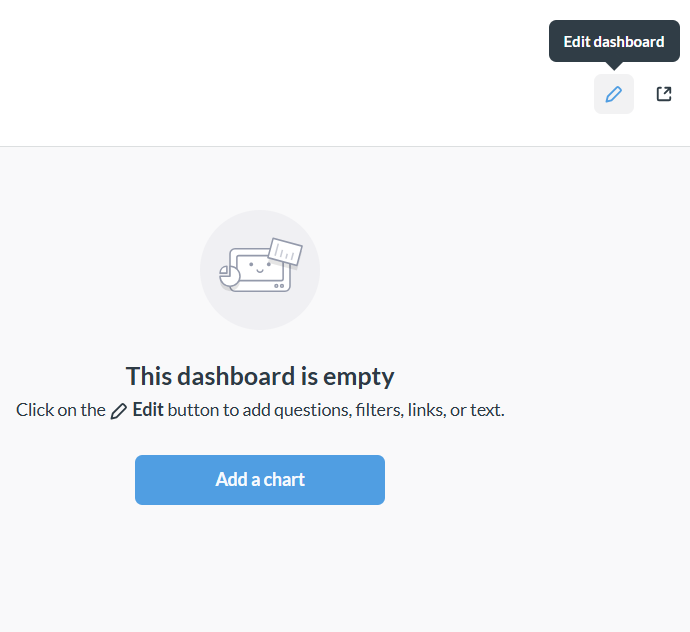
To add a question to an empty dashboard, click on the: "Add a chart" button or edit the dashboard and click on the + button in the top right
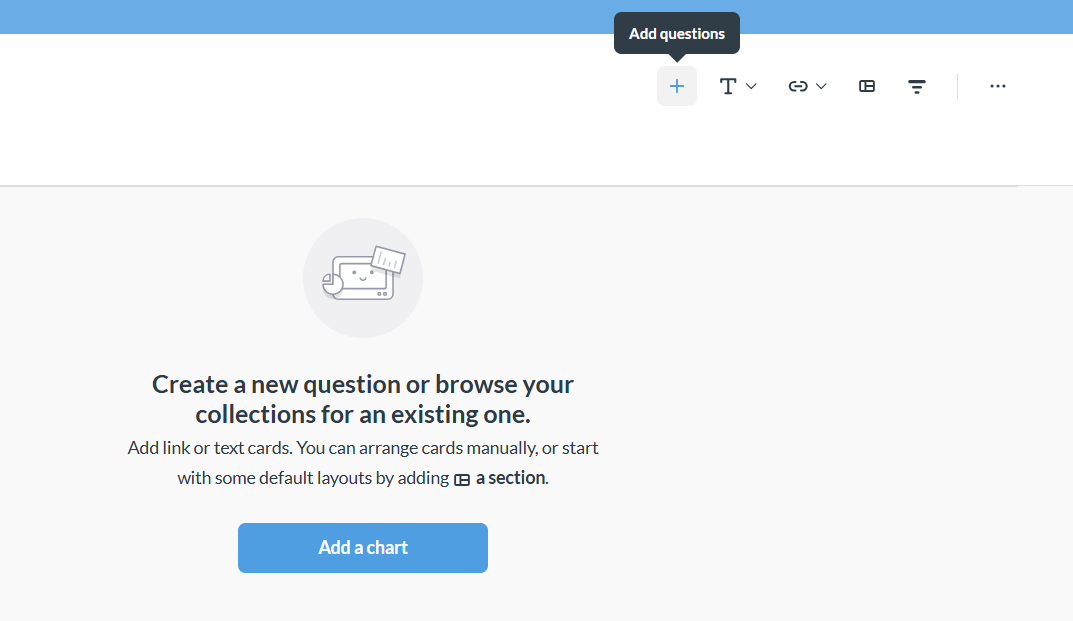
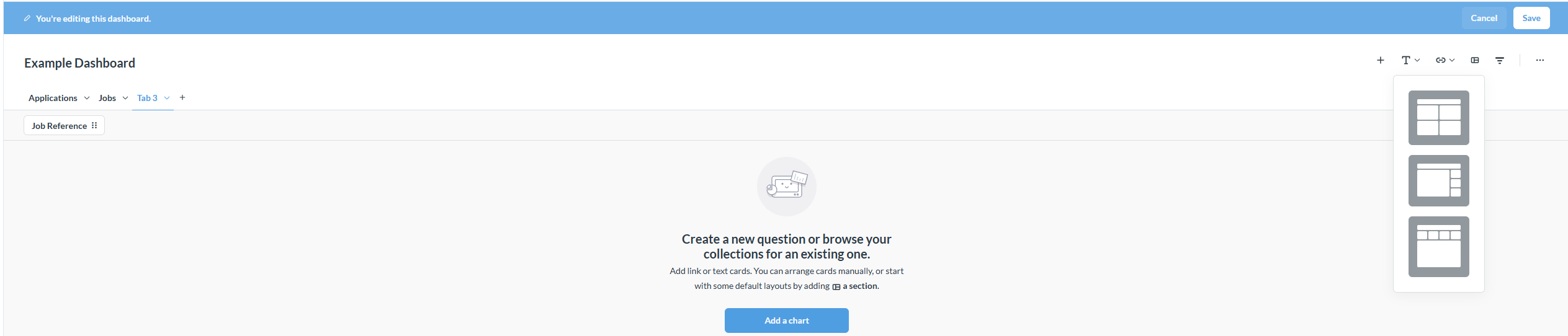
You can add, move and resize questions as you please or use a pre-mapped section layout as shown below:
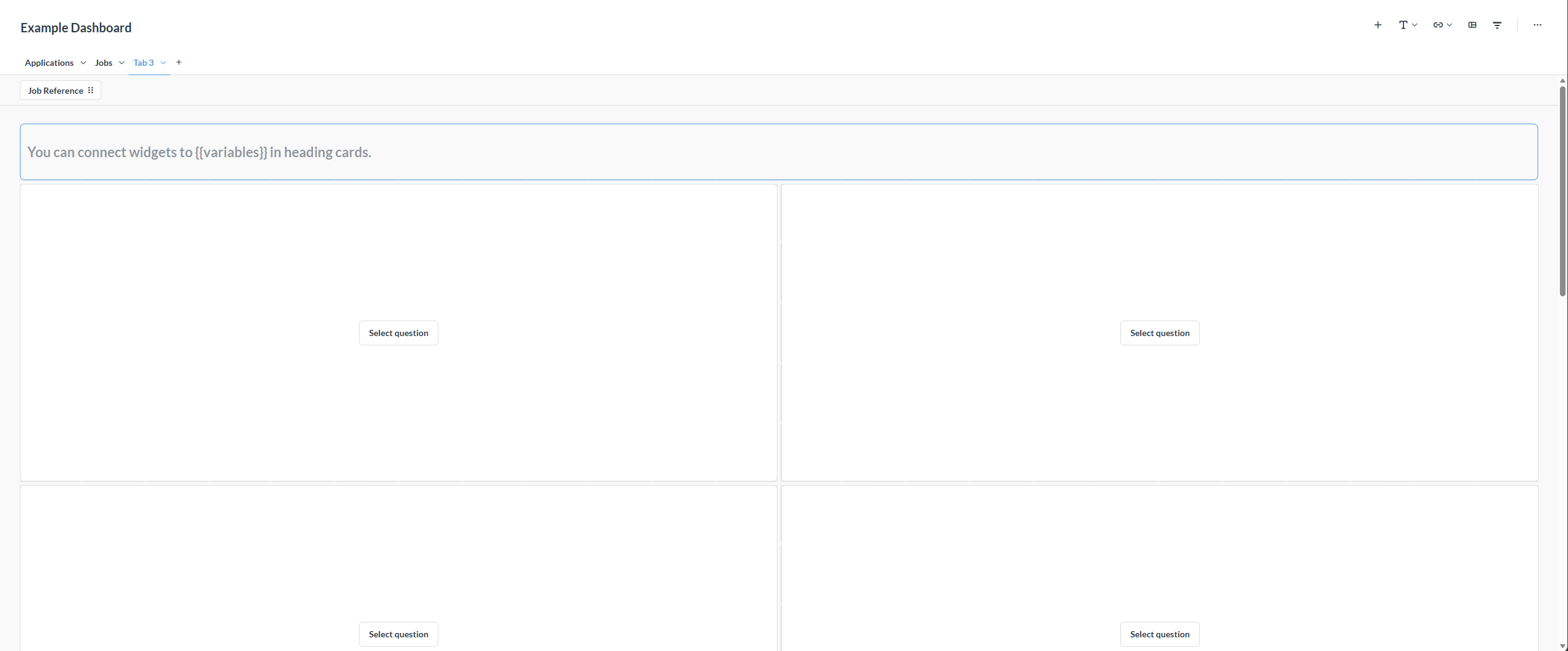
You can either browse collections to add pre-built questions or build your own questions. For more information on building questions refer to: Building Questions
Below is an example of how you can add questions to a dashboard:
Add parameters
You can add parameters/filters to dashboards and link them up to the questions/cards in dashboards. If you do not link up the parameters, then the card will simply remain unchanged when a value in the parameter gets selected.
When adding parameters to dashboards it is important to pay attention to the data types and columns available to link the parameters to. When selecting an ID or date picker data type, for example, you can't link a text type column in a dashcard for that particular parameter. This goes for all data types.
Below is an example of how you can link a parameter to different cards in a dashboard. Notice that the parameter we are trying to select is: Job Reference. This means that if we want to link the filter up with the Job Reference column then each of the cards must either contain the Job Reference column OR have a direct link path to a table containing the Job Reference column. Since the Dashboard Example Question card only contains the candidates table there is no direct link to the jobs table so Job Reference does not show up in the dropdown... No problem. We just go add it to the question as displayed in the example below:
Add text
You can add text to a dashboard to provide context to your cards or dashboard.
Below is an example of how you can add text to a dashboard:
Create subscriptions
You can send dashboards via email on a schedule. This is referred to as a dashboard subscription. You can add the questions in your dashboard as excel attachments and have the charts in the body of the email.
Notes on subscriptions:
* When you hit "send now" the email you receive might contain links. These links will be removed when the subscription triggers, so any links can be ignored when testing your subscription.
* It is not possible to add custom text to the body of the subscription email. To do this add text to the dashboard and it will display in the email body.
Setting up a subscription is pretty self-explanatory: simply follow the instructions in the video below. All the options for the schedules are listed and you can choose which questions you would like to add as attachments. Questions added as csv or excel attachments return the question results in data format and not as the original chart. The chart visuals will be displayed in the email body as shown in the example below: