
How to build questions to access your SnapHire data.
All table and column descriptions, metadata and table relationships can be found in the SnapHire Analytics Data Dictionary
Overview
The first step to accessing your data is either to look at the template cards in the templates collection or to build a question from scratch. A question is essentially a query. When building questions, it is important to understand how the different tables link to one another. If you follow the correct sequence when building a question all the joins are added automatically and you can just select the columns you require.
The data dictionary contains a "constraints" column that indicates if a column links to another column in a different table. For a visual representation of the table relationships, you can go to the data map.
What is possible with questions
Questions allow you to:
Access raw data by selecting tables, joining tables and selecting the desired columns
Add filters to limit data
Aggregate/Summarise data
Add custom columns using functions
Visualize aggregated data as charts
Save questions to be used by dashboards
Add alerts to questions
Data map:
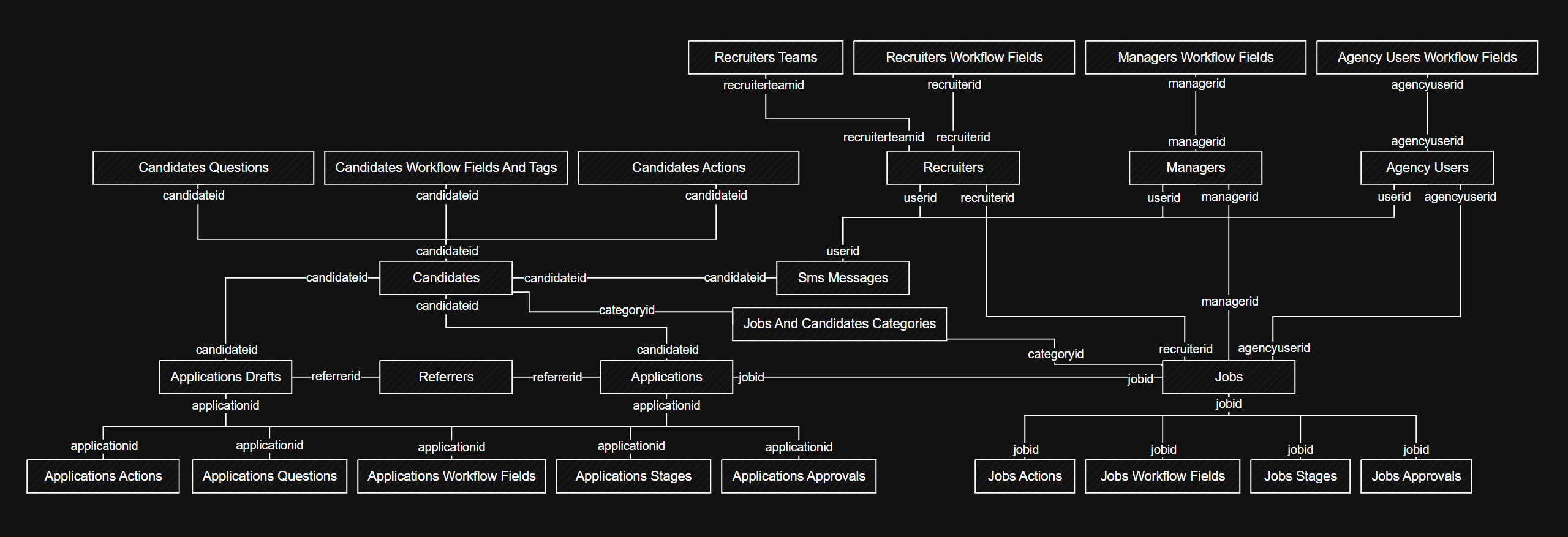 Also find the data map image at the bottom of this article if you would like to download the image
Access raw data
To access raw data, you need to build a question. To build a question you might need columns from multiple tables. It is important to understand the table relationships when building questions so that the tables can automatically be linked in the question builder. For example, if you would like to know all the names of candidates that applied to a job then you should include the applications table in the question, because applications link to jobs and candidates link to applications. Once you understand the relationships building questions becomes very simple.
Below is an example of how to get all the candidates who applied to a job with job reference 442:
The join columns get populated automatically if you select the tables in the right order. If you selected jobs and then try to link the candidates directly, the query engine can't associate the tables. This is because there is no direct link between jobs and candidates. When there is no direct relationship between tables you will be asked to link the tables manually as follows:
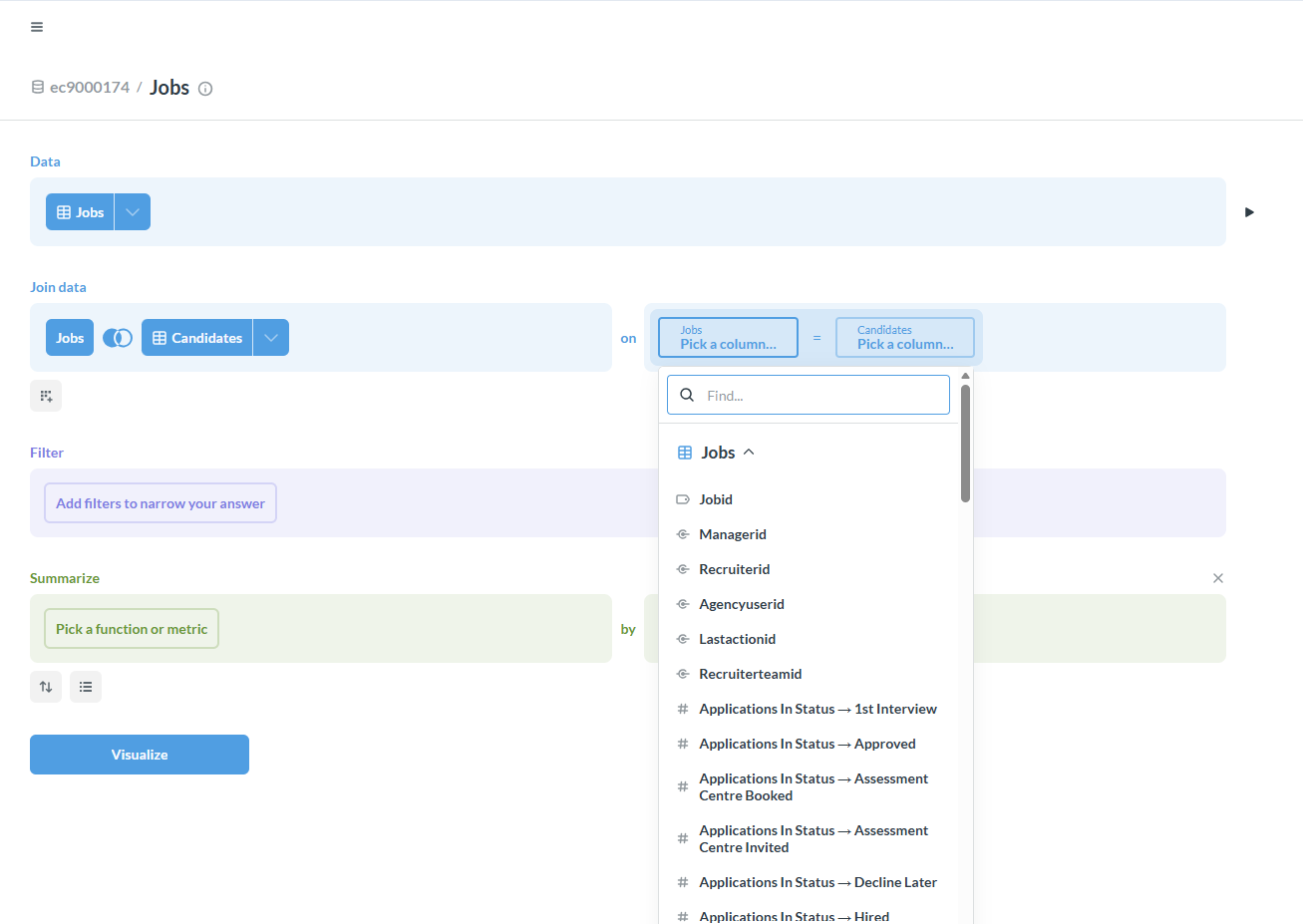
You can also return to the query editor to deselect columns or make changes after viewing the results by selecting edit as displayed in the video.
In the data map you will see the path you can follow to link the tables:
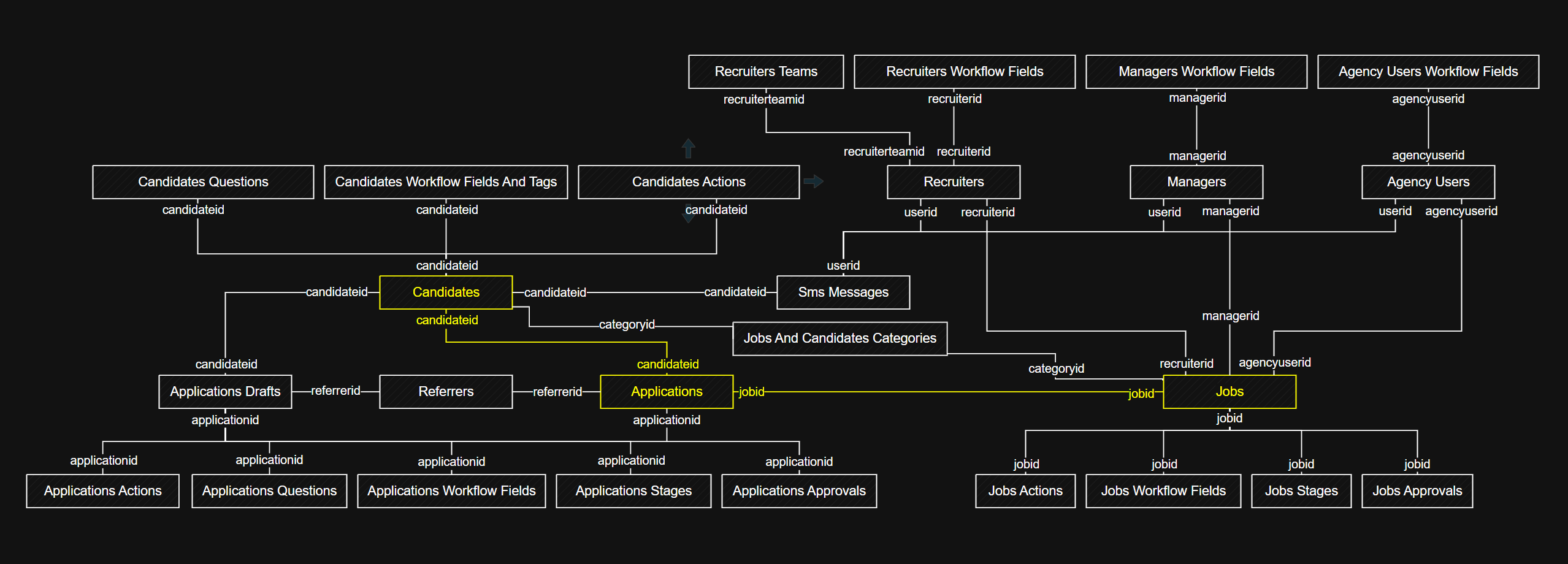
Once you have an understanding of the table relationships building questions are just a couple of clicks away.
Aggregate/Summarise data
After you have selected your raw data, you can summarise your results and build charts.
Below is an example of how you can find the average business days to hire over time bucketed in hire months and how to change the visualization:
Add custom columns
You can add formulas to create custom columns. All the formulas are available in the query builder with instructions. To select a column type: [ and you will see a dropdown of all the available columns.
Below is an example of how you can create a custom column that strips the year from the date submitted of the application column:
Visualize aggregated data
You can visualize your aggregated data in various ways. All the visualization options available are listed when you click on "Visualization" button. If you would like to visualize data as a chart the data must be aggregated/summarised.
Below is an example of building a pie chart visualization to view the applications per business group:
Save questions
You can either save questions in collections or you can build questions straight in dashboards. We recommend always saving questions in a collection, because this enables you to re-use the same question in multiple dashboards.
Below is an example of how you can build a question in a dashboard and how you can save a question in a collection. First we create a sub collection called: Example then we build the questions:
Add Alerts
You can add alerts to questions to send an email when a question has data. Let's say, for instance, you would like to get an email whenever there are hires on job with job reference 441 then you can set up an alert as follows:
Please note: reporting data refreshes at midnight in your time zone, so the alert will only be emailed once the data refreshes and the hires are visible in reporting on the job.
Alerts can also be used to email question results on a schedule if a question always has results, but we recommend using subscriptions on a dashboard instead.
